Cloud-Based Invoicing: How It Works and Why Small Businesses Are Switching
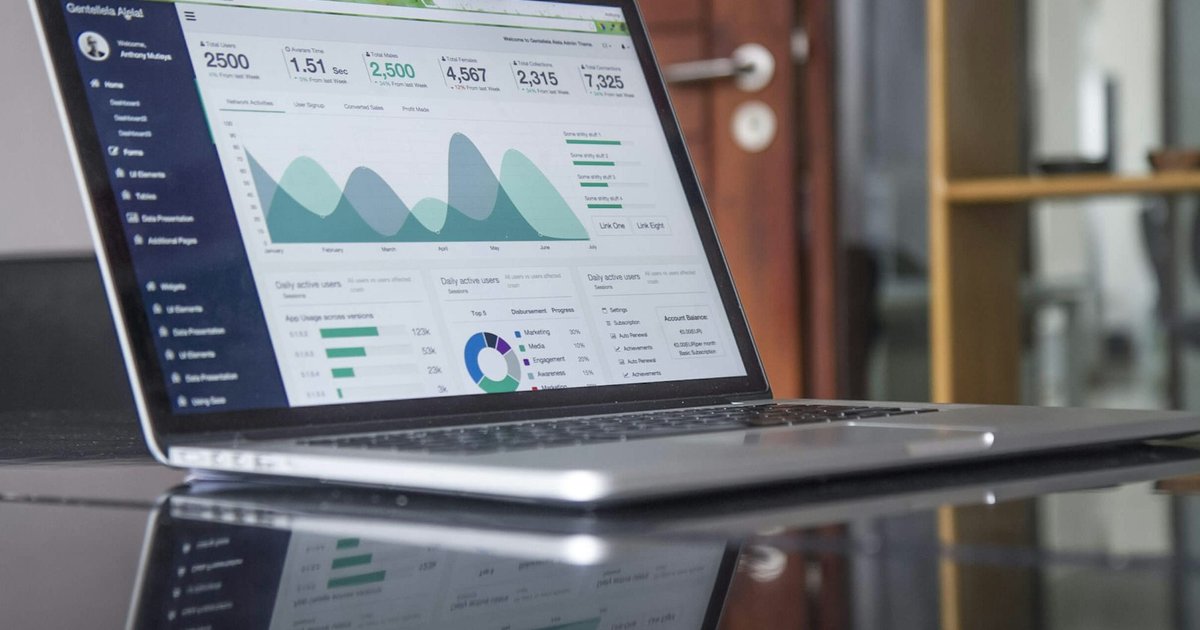
Cloud-based invoicing means creating, sending, and tracking invoices through software that runs in a web browser instead of on one computer. Your invoices, client list, payment records, and reports live on the provider's servers, so you can bill a client from your laptop, check whether they paid from your phone, and let a teammate send reminders from another city, all against the same up-to-date records. Clients get a link instead of an attachment, and they can pay online from that link.
That sounds like a small change from emailing a PDF. In practice it removes most of the manual work around getting paid: numbering invoices, calculating tax, chasing late payers, and matching payments to invoices. This guide explains how cloud invoicing works, how it compares to desktop software and spreadsheets, what features matter, and how to move your billing over in an afternoon.
What is cloud-based invoicing?
Traditional invoicing has three steps that never talk to each other. You build the invoice in Word, Excel, or a desktop accounting program. You email it as an attachment. Then you watch your bank account and update a spreadsheet when money arrives.
Cloud invoicing software joins those steps into one system. The invoice is a record in an online database, not a file. When you send it, the client receives an email with a secure link to view the invoice. That page has a Pay button connected to a payment gateway such as Stripe or PayPal. When the client pays, the gateway tells the invoicing system, and the invoice is marked paid on its own. If the client does not pay, the system sends reminders on a schedule you choose.
Because everything sits in one place, you also get reporting for free: who owes you money, how late they are, which clients pay quickly, and how much you billed this quarter.
Cloud invoicing vs desktop software vs Word and Excel
Most small businesses arrive at cloud invoicing software from one of two places: document templates or older desktop accounting software. Here is how they compare in day-to-day use.
| Word / Excel templates | Desktop invoicing software | Cloud-based invoicing | |
|---|---|---|---|
| Where data lives | Files on your computer or a shared drive | A database on one machine or office server | The provider's servers, reachable from any browser |
| Access from phone or another computer | Only if files are synced, and editing is awkward | Usually no, or through remote desktop | Yes, from any device you sign in on |
| Invoice numbering and tax maths | Manual, easy to get wrong | Automatic | Automatic |
| How the client receives it | PDF attachment | PDF attachment | Email with a link to view and pay, PDF optional |
| Online payment | No. Client must arrange a transfer | Sometimes, through add-ons | Built in through connected payment gateways |
| Payment status | You update a spreadsheet by hand | You record payments by hand | Updated automatically when an online payment clears |
| Reminders for late invoices | You write each email | Limited | Automatic, on a schedule |
| Updates and backups | Your responsibility | Your responsibility, plus paid upgrades | Handled by the provider |
| Team access | Shared files, version conflicts | Per-machine licences | Invite users with their own logins and permissions |
| Typical cost | Free | One-off licence plus upgrades | Monthly subscription, free tiers exist |
Templates are fine for your first handful of invoices. Once you send more than a few a month, or anyone else needs to see your billing, the manual parts start to cost real time and money.
How cloud invoicing works, step by step
The workflow is the same in almost every cloud invoice software. Here it is from start to finish.
1. Create the invoice
Pick a client from your saved list, add line items, and the software fills in the rest: the next invoice number, today's date, the due date based on your payment terms, tax calculated at the right rate, and your logo and business details. If you track time in the same tool, you can pull unbilled hours straight onto the invoice. If you sent an estimate that the client approved, you can turn it into an invoice with one click instead of retyping it.
2. Send a link, not just an attachment
When you click Send, the client gets an email with a summary and a link to the invoice online. You can still attach a PDF for clients whose accounts teams want one. The link matters because it is where the client pays, and because the system can see when the invoice has been opened. You will know whether "I never got it" is true.
3. The client pays online
The invoice page shows a Pay button connected to the payment gateways you have set up. Depending on the gateway and the client's country, they might pay by card, bank transfer, UPI, iDEAL, SEPA direct debit, mobile money, or a local wallet. The money goes into your gateway account and then to your bank on the gateway's normal payout schedule. For more on choosing gateways for overseas clients, see our guide to accepting international payments.
4. The status updates itself
When the payment succeeds, the gateway notifies the invoicing system and the invoice moves from Sent to Paid. Partial payments are recorded as partial. You do not have to log into your bank, find the transaction, and update a spreadsheet. Payments made outside the system, such as a cheque or a direct bank transfer, can be recorded by hand in a few seconds.
5. Reminders go out for you
If the due date passes without payment, the software sends a polite reminder. A common schedule is a few days before the due date, on the due date, and then a week and two weeks after. You set the timing and wording once, and every invoice follows it. Most people find automated reminders less awkward than writing "just following up" emails, and clients treat them as routine.
For a closer look at what to put on the invoice itself, read how to create and send professional invoices online.
Key features to look for in cloud invoicing software
Every cloud invoicing tool can create and send an invoice. The differences show up in the details below. Rank them by how much each one matters to your business, not by how long the feature list is.
Recurring billing
If you have retainer clients, subscriptions, or monthly maintenance contracts, cloud recurring billing saves you from rebuilding the same invoice every month. You set the schedule once (weekly, monthly, quarterly, yearly) and the invoice is created and sent automatically. Check whether recurring invoices can also charge a saved card or direct debit mandate automatically, or whether the client still has to click Pay each time.
Payment gateways
This is where tools differ the most. Many support only Stripe and PayPal, which works well in North America and Western Europe. If your clients are in India, Africa, the Middle East, Latin America, or Southeast Asia, they often prefer local methods that those two do not cover well. Look at which gateways are supported, not just how many. CloudBooks connects to 13 gateways, including Razorpay, Cashfree, and PayU for India, Paystack and Flutterwave for Africa, Mollie and GoCardless for Europe, Tap Payments and PayTabs for the Middle East, Mercado Pago for Latin America, and Xendit for Southeast Asia.
Multi-currency invoicing
Clients pay faster when the invoice is in their own currency. Check whether you can set a currency per client, whether exchange rates are recorded on each invoice, and whether reports convert everything back to your home currency.
Tax handling: GST, VAT, and sales tax
Your invoices need to meet local tax rules. In India that means splitting CGST and SGST, or charging IGST for inter-state supply. In the UK and EU it means showing VAT numbers and handling reverse charge for B2B services across borders. In the US it can mean several sales tax rates. Good software lets you save tax rates, apply more than one tax per line, and show tax registration numbers on the invoice.
Automatic reminders
Look for reminders you can schedule both before and after the due date, edit the wording of, and switch off for particular clients. Optional late fees are useful if your terms include them.
Client portal
A client portal lets each client see all their invoices, estimates, and payment history in one place. It cuts down on "can you resend invoice #1042?" emails, and accounts teams like it.
Mobile access
You should be able to check who has paid, send an invoice, or record a payment from your phone. This matters most for trades, photographers, and anyone who bills on site.
Time tracking to invoice
If you bill by the hour, the most useful feature is a timer whose entries become invoice lines without any copying. Separate time trackers work, but exporting and retyping hours is where billable time gets lost. CloudBooks includes time tracking on every plan for this reason.
Estimates to invoice
Sending a quote, getting approval, and then invoicing the same scope is a common flow for agencies, contractors, and consultants. Converting an approved estimate into an invoice avoids retyping and keeps the numbers consistent.
Reporting
At a minimum you want outstanding invoices by age (current, 30, 60, 90+ days overdue), revenue by client, and tax collected for a period. Those three reports cover most cash-flow questions and most of what your accountant will ask for.
Data export
You should be able to export clients, invoices, payments, and expenses to CSV or Excel at any time. This is your protection against lock-in, and your accountant will need the data anyway.
Is cloud invoicing secure? Data ownership and access
Moving financial records off your own computer is a fair thing to be cautious about. These are the questions worth asking any provider:
- Encryption in transit. Every page and API call should use HTTPS. This is standard, but check that the invoice links you send to clients also use it.
- Payment card handling. Card details should be entered on the payment gateway's own secure form, not stored by the invoicing tool. With Stripe, PayPal, Razorpay, and similar gateways, the gateway handles card data, which keeps that risk out of your invoicing software.
- Backups. Ask how often data is backed up and whether backups are kept somewhere separate from the main servers. A laptop with your only copy of a spreadsheet is a bigger risk than most cloud services.
- Access control. If staff or a bookkeeper need access, they should have their own logins with permissions that fit their role, rather than sharing your password. When someone leaves, you remove their access in one place.
- Data ownership and export. Read the terms to confirm your data belongs to you, and test the export before you commit. If you can get a complete CSV of your invoices and clients, you are never stuck.
- Your own account security. Most breaches of small business accounts come from reused passwords. Use a unique password and a password manager.
Compared with invoices saved on one computer or emailed back and forth, a well-run cloud invoicing service is usually the safer choice. The main thing you give up is control over where the servers are, and export is how you keep control of the data itself.
What cloud invoice software costs
Prices change often and depend on billing cycle, region, and add-ons, so treat the competitor figures below as approximate and check each provider's current pricing page before you decide.
| Tool | Approximate starting price | Worth knowing |
|---|---|---|
| CloudBooks | $9/month (Freelancer), $19 (Team), $39 (Agency) | Unlimited invoices on every plan, recurring billing, reminders, time tracking, expenses, 13 payment gateways, 160+ currencies |
| FreshBooks | Around $19–23/month | Polished invoicing. The entry plan limits how many clients you can bill |
| Zoho Invoice | Free | Free with usage limits. Works best if you already use other Zoho apps |
| Wave | Free invoicing | Makes money from payment processing fees. No built-in time tracking. Card payments in limited countries |
| QuickBooks Online | Around $30+/month | Full accounting. Higher tiers needed for time tracking and more users |
| Invoice Ninja | Free tier, paid plans from a few dollars a month | Open source and can be self-hosted, which suits technical users |
The subscription is only part of the cost. Payment processing fees, usually a percentage plus a small fixed fee per transaction, often cost more over a year than the software. Add-ons for extra users or time tracking can also double the headline price. If a free tool fits your needs, our roundup of the best free invoice software covers where free plans run out.
How to move from spreadsheets to cloud invoicing in an afternoon
Switching sounds like a project. For most small businesses it takes two to three hours. Here is the order that works.
- Collect your business details. Legal name, address, tax registration number (GSTIN, VAT number, EIN, or your local equivalent), logo file, and standard payment terms.
- Set up your account profile. Enter those details, upload your logo, set the invoice number prefix and the next number so you continue your existing sequence, and add your tax rates.
- Connect a payment gateway. Start with the one most of your clients will use. If you already have a Stripe or PayPal account, connect it. You can add regional gateways later.
- Import your clients. Export your client list from your spreadsheet or email contacts as a CSV and import it, or add your active clients by hand if there are only a few.
- Add outstanding invoices. Recreate only the invoices that are still unpaid, using their original numbers and dates, so reminders and your receivables report are correct from day one. Leave paid history in your old spreadsheet and archive it.
- Set up recurring invoices. Add a recurring schedule for each retainer or subscription client.
- Configure reminders. Choose your reminder schedule and edit the wording to sound like you.
- Send a test invoice to yourself. Open it on your phone, check the layout, and make a small real payment to confirm money reaches your gateway account.
- Tell your regular clients. A one-line email saying future invoices will arrive by email with an online payment option avoids confusion.
From then on, every new invoice goes through the cloud system and the spreadsheet stays as a historical record.
Who benefits most from cloud invoicing?
- Freelancers and consultants who bill hourly and want time tracking and invoicing in one place.
- Agencies and small teams where more than one person creates invoices or follows up on payments.
- Businesses with international clients who need multi-currency invoices and local payment methods.
- Service businesses with retainers that send the same invoices every month.
- Owners who work away from a desk, such as trades, photographers, and field services, who need to invoice from a phone.
If you need full double-entry bookkeeping, payroll, or inventory, you may still want accounting software alongside or instead of an invoicing tool. Many service businesses find that cloud invoicing plus an accountant at tax time covers everything. Our page on online billing software for small business goes into more detail.
Frequently asked questions
What is the difference between cloud invoicing and online invoicing?
In everyday use they mean the same thing: invoicing software you use through a browser, with data stored by the provider. "Cloud-based invoicing" puts the emphasis on where the data lives and that you can reach it from anywhere. "Online invoicing" puts the emphasis on sending invoices and taking payments over the internet.
Do my clients need an account to pay a cloud invoice?
No. With most cloud invoicing software, including CloudBooks, clients open the invoice from a link in their email and pay using the methods you have enabled. They do not need to sign up for anything. An optional client portal is there for clients who want to see their full history.
Can I still send PDF invoices?
Yes. Cloud invoicing tools generate a PDF of every invoice, and you can attach it to the email or download it for clients whose procurement systems require a PDF upload. The online link and Pay button are added on top of that.
What happens to my invoices if I stop paying for the software?
That depends on the provider, which is why export matters. Before you cancel any service, export your clients, invoices, and payments to CSV and download PDFs of invoices you need to keep for tax records. Check how long the provider keeps data after cancellation so you are not caught out.
Is cloud invoicing software suitable for GST or VAT invoices?
It can be, as long as the tool supports your country's requirements: the right tax fields, tax registration numbers on the invoice, sequential numbering, and correct handling of things like IGST or reverse-charge VAT. CloudBooks supports GST, VAT, and multiple taxes per invoice. For filing, you will still export the totals for your accountant or tax return.
Getting started
Cloud-based invoicing is now the normal way small businesses bill. The time it saves comes from a few simple changes: invoices that calculate themselves, clients who can pay from a link, statuses that update on their own, and reminders you do not have to write.
If you want to try it on your own invoices, CloudBooks offers unlimited invoices, recurring billing, automatic reminders, time tracking, and 13 payment gateways across 160+ currencies, starting at $9/month. You can start a 15-day free trial without a card and send your first invoice in a few minutes.
Ready to streamline your invoicing?
Join 30,000+ businesses using CloudBooks to get paid faster.
Start Free TrialRelated Articles
Bookkeeping vs Accounting: What's the Difference (and Which Does Your Business Need)?
Bookkeeping is the day-to-day recording of a business's financial transactions: every invoice sent, ...
Best Bill.com Alternatives in 2026 (for Invoicing and Getting Paid)
Most people searching for Bill.com alternatives want one of two things. Some want cheaper or simpler...
Invoicing Software for Sole Traders: What You Need and What to Skip
When you work for yourself, invoicing is the one admin job you cannot skip. No invoice, no payment. ...